Free wedding seating chart maker: how to seat every family
A free wedding seating chart maker that works in your browser: draw your tables and stage, paste your guest list, seat each family with a drag or one tap, then download the chart as a PDF.

The Wedding Card Maker seating chart maker is free and runs in your browser. Draw your tables, the stage and the dance floor, paste your guest list, then drag each family to a table or let Fill tables seat everyone for you. You don’t need an account to build the plan. Sign up free when you want the PDF for your venue.
Seating is where a guest list turns into real people in a real room. Nani needs a chair near the door, the college friends want to be near the dance floor, and two sides of the family need to feel equally welcome. Here is how to plan all of that in one place, step by step.
Open the free wedding seating chart maker
Step 1: Draw the room
Start by typing both first names next to Plan for, so they appear on the printed chart. Then use the bar above the floor to add what your venue has. Tap an item to place it, or drag it straight onto the floor, then drag anything to move it.
- Round tables start with 8 seats and long tables with 10; change any table to between 1 and 30 seats
- Add the stage, dance floor, entrance and bar so the plan looks like the hall
- Use Text for a label such as ‘Buffet’ or ‘Photo booth’
- Select a table to change its seats, rename, copy or remove it from the small toolbar above it
- A plan holds up to 150 tables and items
Ask your venue how many seats they set at each table and match that number here. The plan then tells you when a table is full, so you never promise ten chairs where there is room for eight.
Step 2: Add your guests
In the Guests panel, add families one at a time with a name and the number of people. For a longer list, open Paste a list or upload a CSV and put one family per line: the name, how many are coming, and a group such as ‘Bride’s family’. You can paste rows straight from a spreadsheet, and a header row such as Name, Guests, Group is recognised. A phone number in any column is kept too.
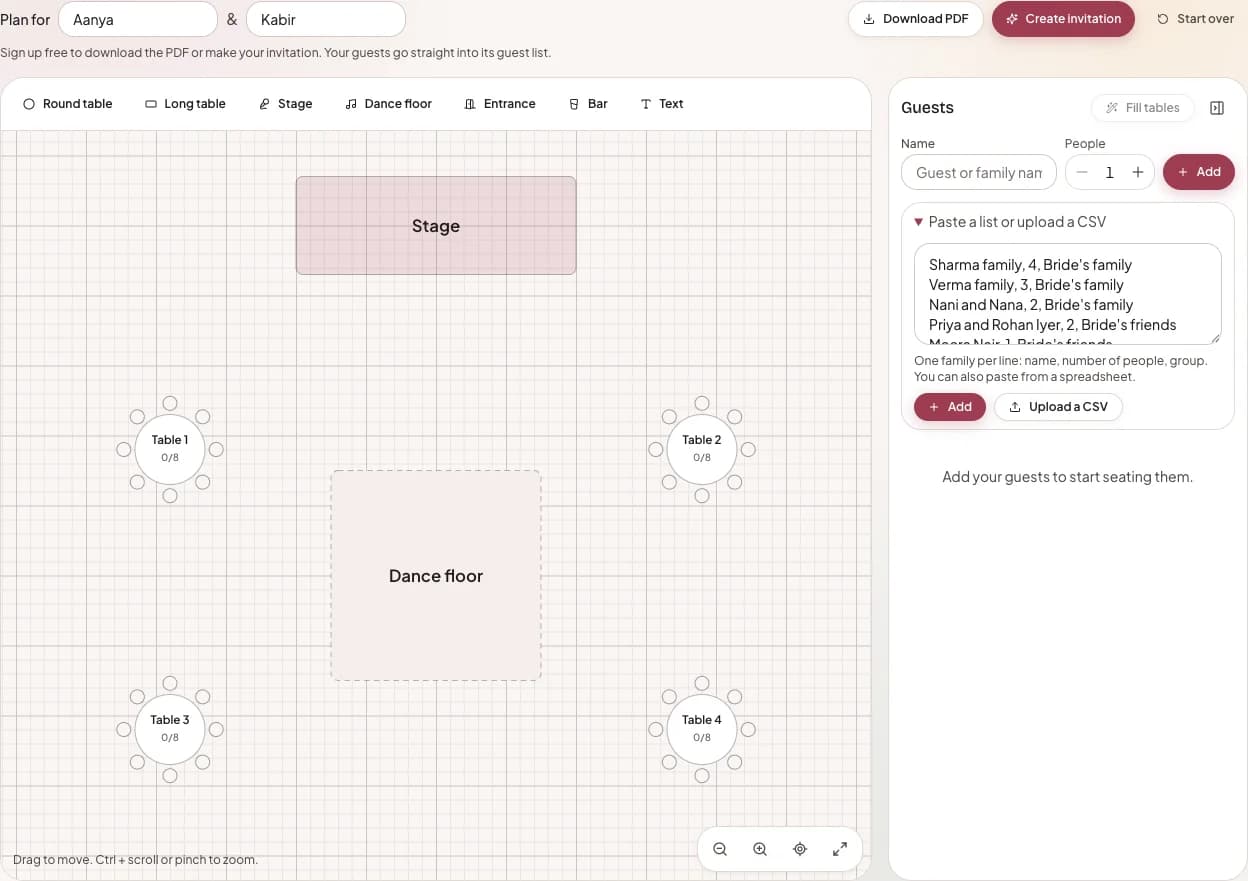
Think in families, not single names. ‘Sharma family, 4’ is one line that takes four seats, which is how most Indian families arrive and how they expect to sit. A plan holds up to 2,000 families.
Step 3: Seat the families
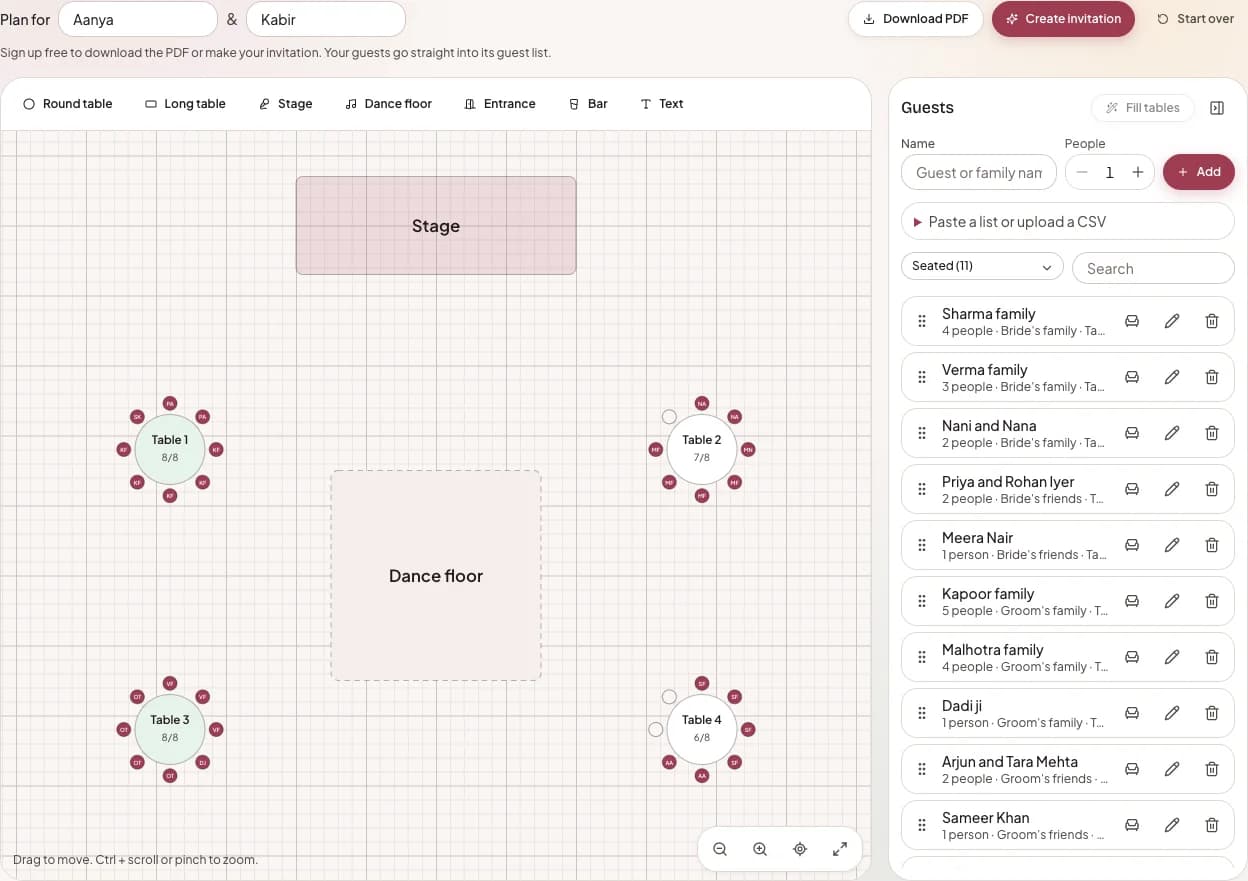
Drag a family from the list onto a table, or select a table, choose Seat guests and tap the names to seat there. Each table shows how many of its seats are taken, such as 6/8, and its chairs fill with the family’s initials. Drag a family back to the list to take them off a table.
When the important tables are done, press Fill tables. It seats everyone still waiting, biggest groups first, and keeps each group at one table where it can. A group too big for any one table is split across the roomiest ones, and families you have already placed stay where they are.
Step 4: Download the PDF
Download PDF asks you to sign up for a free account. The PDF lists each table with its guests, anyone not seated yet, and every name from A to Z, so the welcome desk can find a family in seconds. Signing up also puts your families into the guest list of a new draft invitation, and your floor and seats onto that invitation’s Seating page, where you can keep adjusting them.
Already have an invitation here? Signed in, choose Add to invitation and pick it instead. New families join its guest list, and your tables go in if its seating plan has none yet.
Seating etiquette that saves arguments
- Seat both sets of parents and grandparents first, close to the stage but away from the speakers
- Give elders and anyone with limited mobility a table near the entrance and the washrooms
- Keep each family together, then mix friends from both sides at the tables in between
- Seat children with their parents unless there is a supervised kids’ table
- Leave one or two empty seats in the hall for the guest who arrives unannounced
- Start once most replies are in, usually three to four weeks before the day, and ask your venue when they need the final chart
A good seating plan is invisible on the day. Nobody notices it, because everybody is where they want to be.
What stays private, and what needs an account
Without an account, your plan is kept only in this browser, for a week after your last change, and nothing is sent to us. That also means it doesn’t follow you to another phone or laptop. Start over clears it. If your browser refuses to store it, as some private windows do, the page warns you so you don’t lose your work.
Building, moving and seating are free without signing up. The PDF and the hand-off to an invitation need a free account. If your plan limits how many guests an invitation can hold, families over that limit are left out of its guest list, and the page tells you how many.
Wedding guest list manager: track RSVPs for every event
Wedding RSVP checklist: what to ask guests, and when
Work out your RSVP date with the free deadline calculator
Plan your costs with the free wedding budget calculator
Quick answers
- Is the seating chart maker free? Yes. Building and seating the plan is free with no account, and the PDF needs only a free sign-up.
- How many guests fit at a wedding table? A round table 5 to 6 feet across seats 8 to 10 people. Set each table’s seats in the plan and it shows when one is full.
- Can I paste my guest list from Excel or Google Sheets? Yes. Paste the rows, or upload a CSV, with one family per line: name, number of people and group.
- Where is my seating plan saved? In your browser, for a week after your last change. When you sign up, a copy goes into your invitation.
- What does the PDF include? Each table with its guests, anyone not seated yet, and an A to Z list of every name.
Written by Inviteeq Editorial, with care for every celebration. How we write and check these stories